How to use Miracue

Miracue is a teleprompter that runs in your browser. Write or paste your script on a computer, then open it on the tablet, phone or any device you want to read from. This guide covers everything, from writing scripts and controlling the scroll to voice follow, sharing, remote controls, your account and your data, and privacy.

Updated 29 August 2026

01 · Getting in

Two ways to use Miracue

With a free account.

Enter your email and we send a sign-in link and a six-digit code; either one signs you in, and the first time also creates your account. Signing in with Google works the same way. There is no password unless you choose to add one. Your scripts save to your own private library and appear automatically on any device you sign in on.

Without an account.

Choose "Continue without an account" and start straight away. Your scripts stay inside your browser on that device: nothing is uploaded, nothing is tracked, and nobody, including us, can see a word you write. A starter script called "Read me first" gives you a quick tour.

02 · Scripts

Writing and organizing your scripts

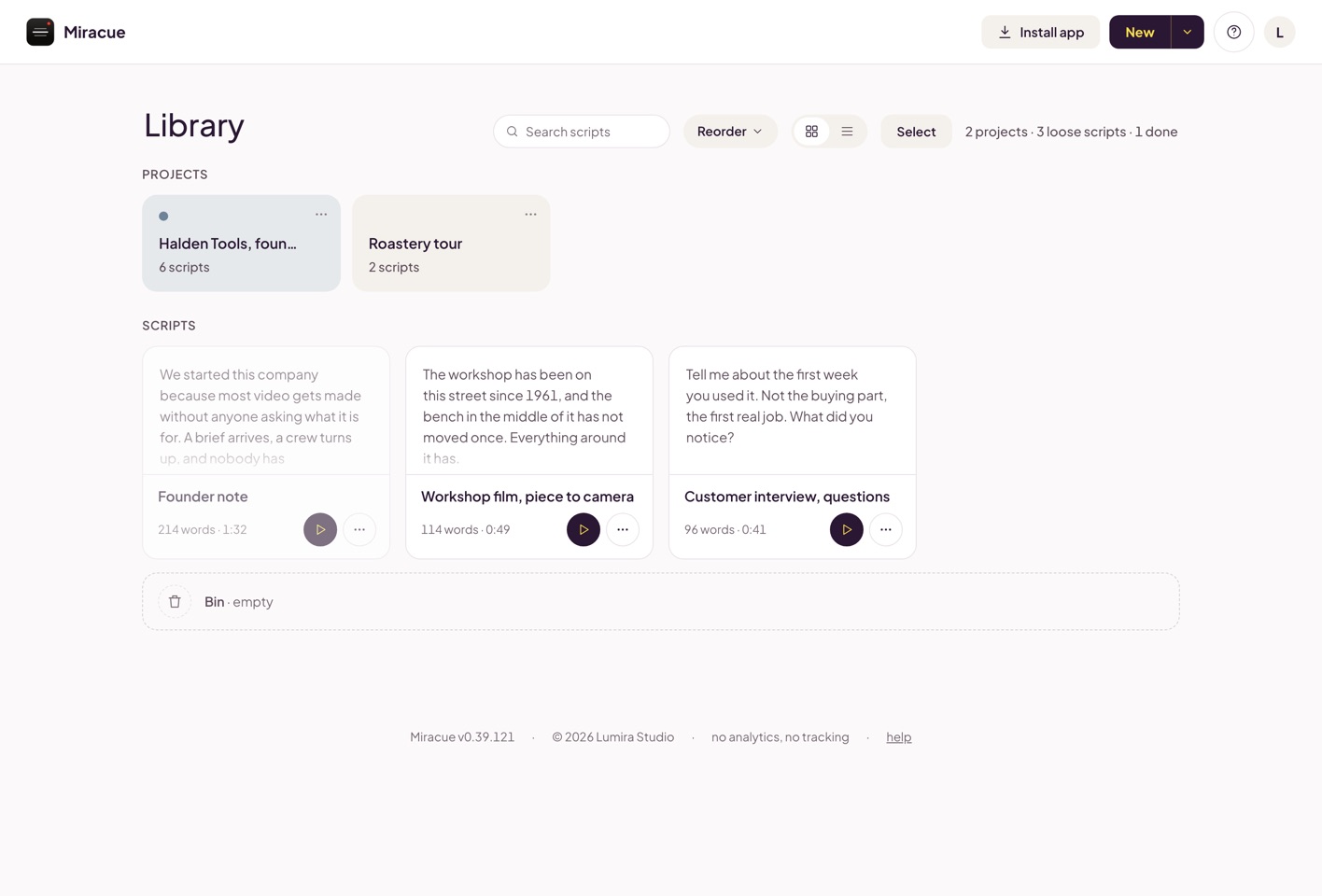
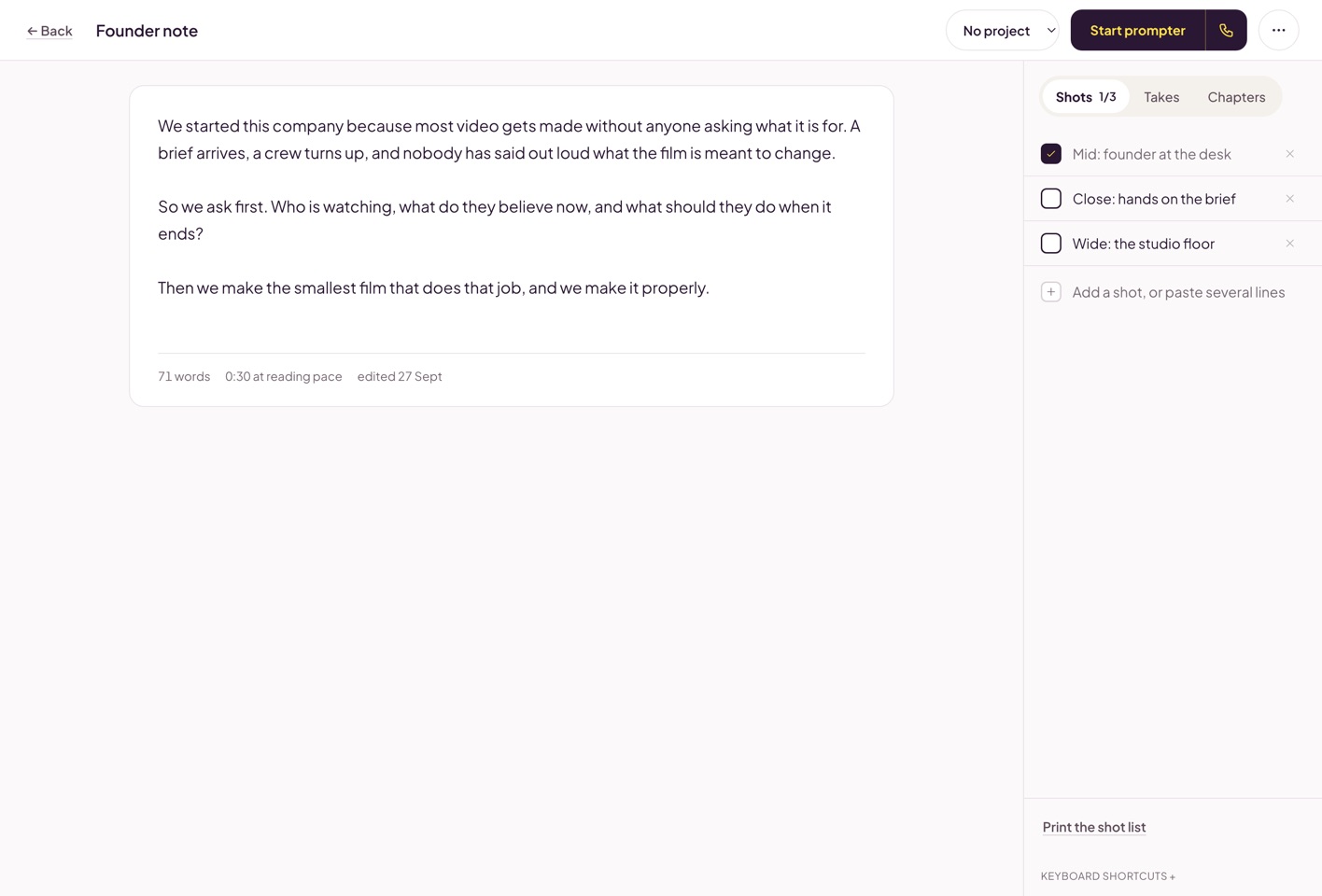
The Miracue library in a desktop browser holding three scripts, each showing its opening lines, word count and reading time.The Miracue editor on a desktop browser: a founder script on a white page, with the word count and reading time beneath it and the Start prompter button top right.
Paste from almost anywhere. Copy your script from Word, Google Docs or an email; Miracue removes the unwanted formatting and keeps your paragraphs and line breaks.
Auto save. Your script saves automatically as you type; there is no save button because none is needed. The word count and reading time, based on a natural speaking pace, sit in a ruled line under the script and update as you write.
New, and the arrow beside it. The New button at the top makes a script. The small arrow next to it holds the other two ways in: New folder and Import (accounts). While you are editing, both step aside so the toolbar is the editor's own.
Cards or a plain list, whichever suits you. Cards show each script's opening lines on the face, which is how most of us recognize our own work. The two small buttons at the top switch to a list, and Miracue remembers which you chose on this device. The list is the on-set view: every script shares one card, the count at the top keeps the day's score ("2 of 5 done"), a finished script strikes through, and the next one still to film carries the filled play button. Either way, the tick marks a script done, the play button takes you straight to the prompter, and the three dots rename, move, share, or send it to the bin.
Keep projects organized with folders (accounts). Group scripts by client or project, and give a folder one of six muted colors from its menu: the folder's tab and a small dot take the color, so a client or a production is recognizable across the library at a glance. Paper stays the default. Deleting a folder moves its scripts to the bin along with it.
Import a document holding several scripts (accounts). Paste the whole document, or choose a .txt or .md file, and press Split into scripts. Miracue finds the individual titles and shows them as a ticked list; untick any you do not want, name the folder if it is going into a new one, then add the rest in one go. Numbered or capitalized titles are recognized even when a paste loses its blank lines, and a plain title needs an empty line above it. For a messy or very long document, the AI prompt at the foot of the window tidies it first: how the import works.
Nothing disappears instantly. A deleted script waits in the Bin, at the foot of the library, for 30 days. Every row there says how many days it has left, with Restore and Delete now beside it, and Empty the bin waits quietly at the bottom, asking once before it does anything.
Tick a script when it is done. The circle on the left grays the script out and nothing else changes. Ticking never changes the edited time, so the order you set stays put.
Choose several at once. On a computer, hold Command or Control and click to pick scripts out one at a time, or click one and Shift-click another to take everything in between. On an iPad or a phone, hold a script for a moment to start choosing, then keep your finger down and run it through the library to sweep up the rest; the page scrolls itself when you reach the edge of the screen. In the cards view, press Select at the top if you would rather do it that way. A dark bar appears at the foot of the screen with everything you can do with what you chose: Select all, Move to folder, Share, or Bin. Done selecting puts the library back as it was.
Drag a script into a folder (accounts). Pick a card up and drop it on a folder. If several are chosen, dragging any one of them carries the whole set, and the card in your hand shows how many. On a touch screen, hold a script you have already chosen and it lifts the selection rather than starting a new one. A move can be undone from the message that follows it, and so can sending scripts to the bin.
Search everything you have (accounts). The box at the top of the library looks inside folders as well as at the loose scripts, at the titles and at the words of the scripts themselves. Each result says which folder it came from; clearing the box puts you back where you were.
The editor has one toolbar. Back, the script's title, the folder it lives in, Start prompter, and everything else behind the three dots. The script sits on its own sheet in the middle of the screen, with nothing else competing for the width.
Everything a shoot needs sits in the rail beside it. On a desktop, a rail at the edge of the screen holds three tabs: Cutaways (Cutaways for this script), the B-roll checklist you tick off as they are captured, which is separate from a shoot's shot list; Takes, where you star the keeper and leave a note for the edit; and Chapters, the points you can jump straight to while reading. Each tab shows its count, and Print the script and cutaways sits at the rail's foot, giving you the script with its cutaways on a clean sheet. Ticking a cutaway never counts as editing the script, so someone marking shots on set can never trip over someone changing the words. On a phone or a portrait iPad, Start prompter becomes a full-width bar under your thumb at the foot of the screen, and the rail becomes a drawer just above it: tap a tab to open it, tap it again to close. (Cutaways, takes and voice notes with their transcription are part of Miracue Pro.)
Two floating buttons on a touch screen. In the editor's left margin, a bookmark button drops a chapter wherever the cursor is, keyboard up or not, and the button beneath it hides the keyboard or brings it back, which matters on an iPad with a keyboard paired. They sit in the margin, so the words are never covered.
Put them in the order you want. The sort control switches between order added, name, and last edited; order added matches an imported document exactly.
03 · The prompter

Reading and controls

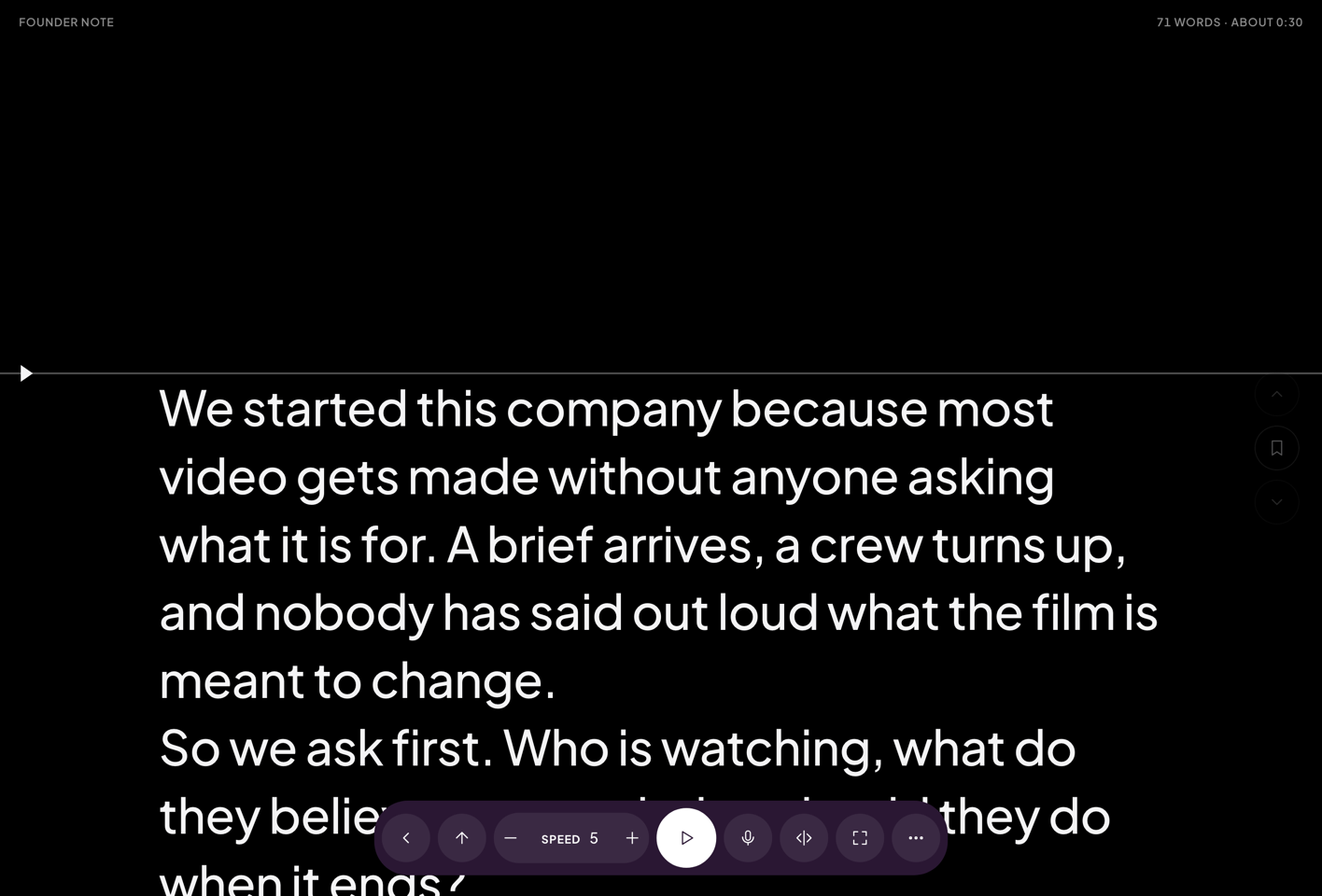
Miracue's prompter running in a browser, showing a founder script at reading size with the eyeline marker and the control rail.
Press play and a short three-two-one counts you in before the scroll begins, at any speed from one to ten.
Tap anywhere to pause; tap again to continue. The controls fade while you read and return the moment you pause.
Move the script by hand. Use the scroll wheel, drag with a mouse, or pull the text with a finger, even while it is playing.
The script starts where you read. The first line sits just below the reading line when you begin, so nothing is hidden above it, and the lines you have read fall back to gray as they pass.
The settings sheet holds text size (up to a very large 96 for low-vision reading), line spacing, side margins (wind them right in and the script reads as a narrow column, which is easier to hold at a distance), speed, and the reading-line position: put the line where your camera lens is, high for a camera above the screen, central for a beam-splitter. Press anywhere on a row and the value follows your finger, with a minus and a plus either side for fine steps; the sheet fades while you drag so you can see the text change behind it. Under the sliders sit both mirror directions for beam-splitter rigs, Full screen on play, and the reading colors, which help some eyes hold the line and change only your screen. Display settings belong to the device, so your phone, tablet and laptop each keep their own; a script remembers only its speed. Call mode sizes its text to the window by itself and reads full width, so it stays readable as you shrink the window beside a call.
The screen stays awake for the whole session. On a computer the prompter goes fullscreen on its own; on phones and iPads a fullscreen button in the control bar switches it on and off whenever you want it, so a swipe on the script never throws you out mid-read. iPhone browsers keep their own bars on the screen: for a truly full screen, add Miracue to your Home Screen and open it from there.
Controls, left to right: exit, back to top, the speed pill (slower, the speed, faster), play and pause, voice follow, mirror, fullscreen (phones and iPads), settings. On a phone they sit in one row, and a thinner one in landscape so the script keeps the height.
Chapters sit down the right edge. Three faint buttons: previous chapter, add a chapter here, next chapter. They stay reachable while you read, which matters on an iPad with no keyboard attached. Previous and next are grayed until the script has its first chapter. Jumping never stops the scroll: go back a chapter to take a line again and the script carries on from there at the same pace, so the read keeps its flow.
04 · Voice follow

How voice follow behaves

Press the microphone button and read aloud. A small speech model runs entirely on your device: your audio and transcript never leave it. the red dot means the microphone is live. The status line stays in the top corner while you read.

It follows what you actually say. The script moves when your spoken words match the text, in one continuous glide that keeps your line near the top of the zone. You set the pace simply by reading.
Going off script never scrolls. Ad-lib, cough, or answer someone in the room and Miracue waits for you; the zone dims while it waits and brightens when it locks back on.
Retakes are one press. Page Up, or the clicker's previous button, jumps back three lines; a chapter button jumps back a section. Voice follow carries on from wherever you land.
Manual control still works. Space, or the clicker's play button, mutes and unmutes the follow; a touch on the script never pauses it, so you can reach the controls mid-take. Drag, scroll, or reposition, and the tracker continues from wherever you place it.
The first download happens once. The first use fetches the voice model, about 65 MB, and stores it on your device; after that voice follow starts straight away, even after the browser has been closed.
Device note. Because recognition runs entirely on your device, voice follow works best on a computer or a recent iPad. Manual scrolling, foot pedals and clicker remotes work fully on every device.
05 · On a call

Reading on a video call

Call mode opens a script small and docked instead of full screen, so it shares the desk with Zoom, Teams or Meet - and on Chrome or Edge on a computer, the pin keeps it on top of the call.
Start it for a call. Use the phone half of the Start prompter button in the editor, or the phone that appears on a script card under your mouse. In Chrome and Edge on a computer it opens straight into the pin, a small window that floats on top of the call. Already reading when the call begins? "On a call…" at the end of the display settings does the same. Browsers that cannot float a window do not show the phone button.
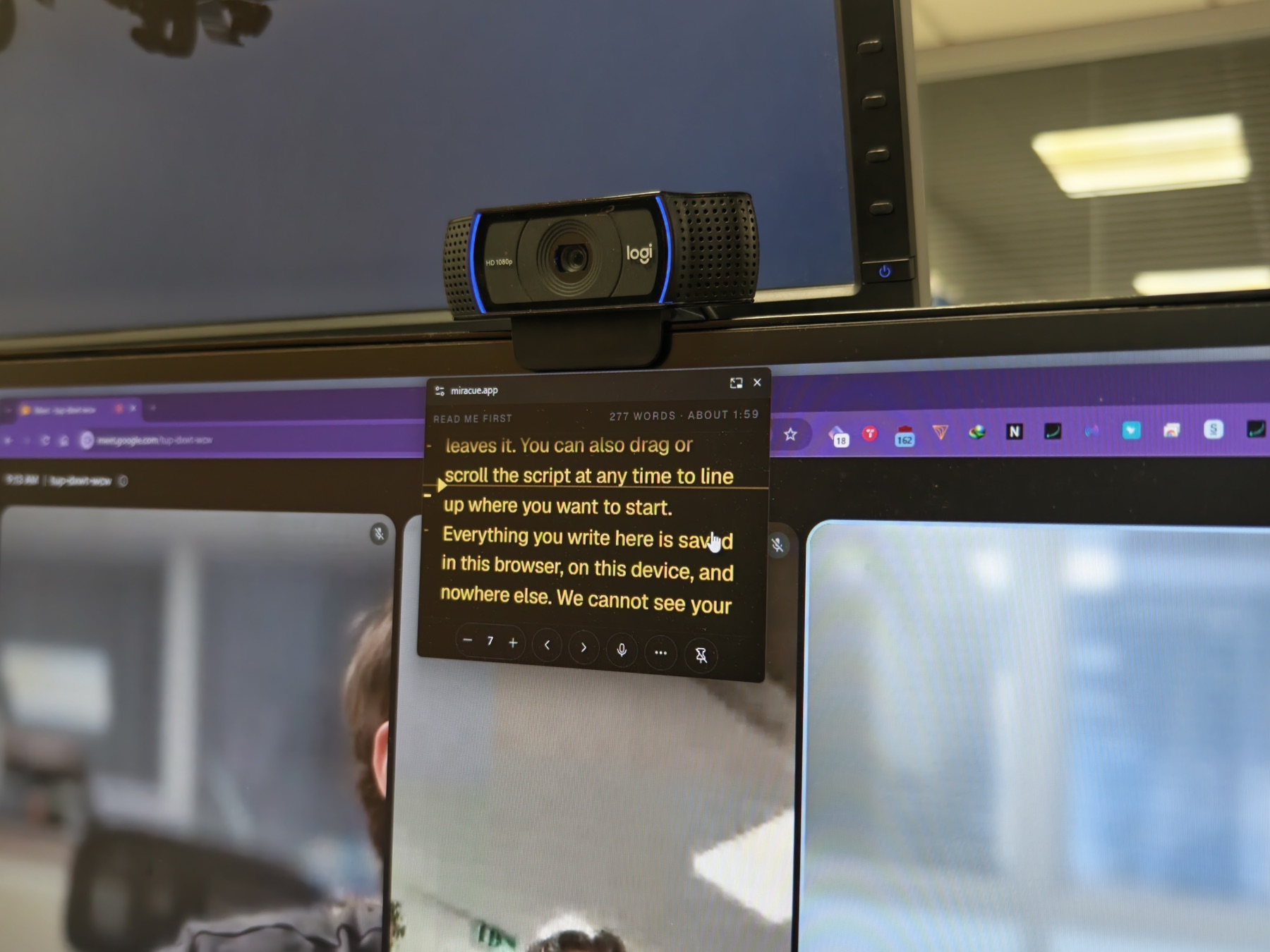
Pin it over the call. Press the pin and the script lifts into a small floating window that stays above every other window, the call included. Drag it to the top center of the screen, directly under your camera.
Click the words to pause and resume. The little window keeps just what a call needs: speed, chapters when the script has them, voice follow and the settings. Your place is kept while you talk.
The tab stays open. While the pin floats, the tab behind it says so and offers to bring the script back; closing that tab closes the pin.
Sharing your screen? The pin is a real window, so it appears in a full-screen share. Share the slides window instead and the script stays yours.
The trial and Pro. Every free account includes three pinned calls; Pro keeps the pin on every call. The docked window and voice follow are free for everyone, and a pin that is open never expires mid-call.
A webcam clipped to the top of a monitor, with the Miracue script pinned in a small floating window directly beneath it, over a live video call.
The whole trick in one frame: the pin parked directly under the webcam, floating over the call
06 · Share your scripts

One private link, any device

Sharing scripts to another device, or to a presenter, comes with a free account.

Share one script, one folder, or a few at once (accounts).

Open the three dots on a script or a folder and choose Share this script or Share this folder. To send a handful, press Select in the library, pick them out, and press Share in the bar at the foot of the screen. Either way you get one private link with a QR code: copy it, scan it with another device, or send it on. A single script shares as a live link to the script itself, so a presenter can open their lines on their own phone without an account of their own, and what they type goes straight into your script. A folder or a set is encrypted on your device and travels as a copy. It works into a phone that already has Miracue open, too. As a guest, Share scripts explains the free account instead: moving scripts between devices is what the account is for.

Two kinds of link.

A single script shares as a live link to the script in your account: what they type goes straight into your script, and your changes reach them within seconds. It is stored like the rest of your account, encrypted at rest with keys we hold, and it switches itself off seven days after you share it; you can turn it off sooner, or back on, from the same window. A folder or a hand-picked set travels as an encrypted copy instead: what is needed to open it travels only inside your link, in a part of the address browsers never send, so we cannot read what is stored there. That copy deletes itself seven days after the link is made, and a button in the same window deletes it sooner. Your account library does not depend on either: sign in on any device and your scripts are there.

Signed in, choose Devices from your avatar, then "Link a device".

The QR code there signs one device straight into your account and works for 60 seconds, so it is safe to show on a screen. The copyable link is longer-lived, like a spare key: anyone with it can open your library, so keep it somewhere safe and revoke it from the same window whenever you need to. A link unused for 60 days stops working on its own.

07 · Keyboard and remote

Hands-free control

Inexpensive Bluetooth presenter remotes send keyboard keys, so pairing one with a tablet gives full hands-free control. A foot pedal programmed to send the space bar makes a natural stop-and-start pedal. The same keys work on any keyboard, and the clicker's two buttons change meaning with the mode, as the table shows.

KeyAction
SpacePlay or pause the scroll (mutes or unmutes voice follow)
↑ / ↓Speed up / slow down
Page DownPlay or pause, the same as Space; in voice follow it jumps forward three lines (a clicker's "next" button)
Page UpJump back three lines for a retake (the clicker's "previous" button)
HomeBack to the top
BAdd a chapter at the reading line
[ / ]Previous / next chapter. Works while the script is scrolling
Shift + ↑ / ↓Previous / next chapter, for anyone who prefers the arrows
1 … 9Jump straight to that chapter. The number pad works too, so a small Bluetooth keypad makes a neat chapter remote
MVertical mirror on or off, for beam-splitter rigs; horizontal is in Display
VVoice follow on or off
EscLeave the prompter
A number pad makes a good remote

One hand, no keyboard

A small Bluetooth number pad is the cheapest way to drive Miracue from across the room, and every key on one already does something. Nothing to install and nothing to configure. If the pad has a knob that can be switched to scroll mode, it moves the script by hand, the way a prompter operator would.
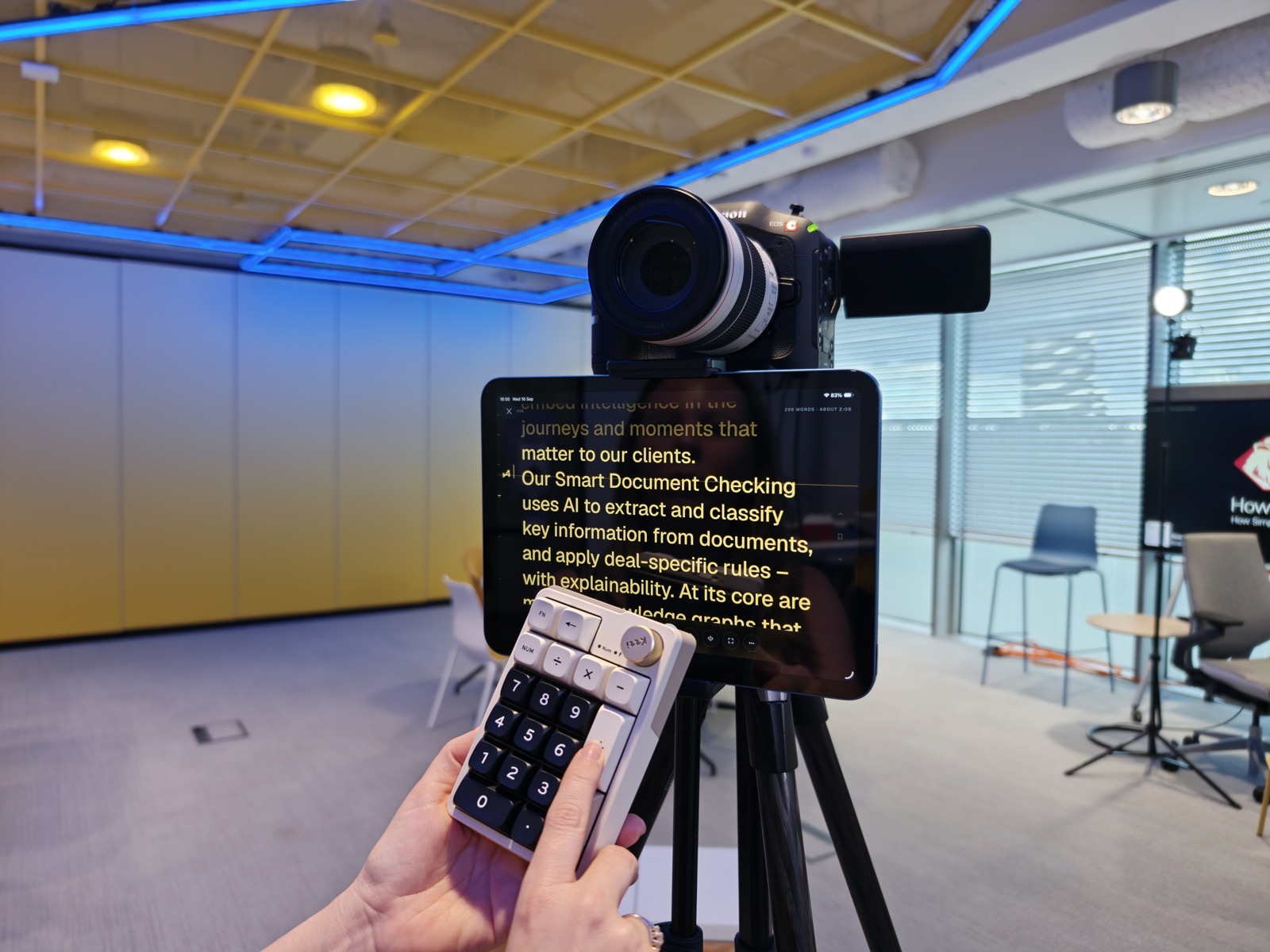
A Bluetooth numpad in hand, working the prompter on a tripod from off camera
Number pad keyAction
EnterPlay or pause. The biggest key, so you can find it without looking
1 … 9Jump straight to that chapter
/ and *Previous / next chapter
+ and −Speed up / slow down
0Add a chapter at the reading line
.Voice follow on or off
←Back three lines for a retake
Knob, in scroll modeMoves the script by hand

One thing worth knowing if you film with a microphone near the talent: mechanical keypads are audible on a take. If yours has hot-swappable switches, silent ones solve it. The quietest way to work is to set your chapters before the take and then use the knob, which makes no noise at all.

08 · On your desktop or home screen

Install Miracue like an app

Add Miracue to your computer, phone or tablet and it opens in its own clean window, without the browser bars.

Chrome and Edge (Windows, Mac, Android).

Open the menu at the top of Miracue and choose "Install app". One click adds it to your desktop, Start menu or home screen with its own icon, opening in a clean window without browser bars. On an iPad or iPhone the route is Safari's own: tap the Share button, then Add to Home Screen; the same menu in Miracue shows you these steps.

Safari.

On a Mac, open Miracue and choose File, then Add to Dock. On iPhone and iPad, tap the share button and choose Add to Home Screen.

It works offline, once it has loaded with internet.

Installed or simply opened once, Miracue keeps itself on your device: the app starts without any internet, guest scripts work fully offline, and a signed-in library keeps a reading copy on the device, so synced scripts open offline too. Tap the microphone once while you still have internet and the voice model is stored as well. Editing a signed-in script still wants a connection; offline is for reading. Give the very first load a few quiet moments before going offline - it says so when it is stored.

09 · Your account

One page for everything about you

Your avatar in the top corner opens it: profile, plan and billing, sign-in, devices, preferences, your data, and, at the very end of the page, the option to delete. On a phone the sections sit in a row of chips along the top.

Devices: everywhere this account is signed in.

The list shows each device with when it was last seen, and any one of them can be signed out from there. A free account keeps two devices signed in at once and Pro keeps three. Sign in on one more and Miracue asks which to let go; nothing is ever signed out without you choosing, and "Stay signed out on this device" is always an answer. Link a device, on the same page, is the 60-second QR code that signs an iPad or a phone straight in.

Sign-in and profile.

Your email address is your account; a sign-in link or a six-digit code is all it takes. A password is optional, for shared machines, and can be added, changed or left alone. Google can be connected or disconnected, and when Google signed you in, the avatar shows your Google photo; otherwise it shows your initial. Your name is a text box that saves itself when you change it.

Plan and billing.

The plan card says what your account includes. On Pro it shows how the plan was obtained and, for an annual plan, the renewal date, and Receipts and billing opens your record on Paddle's own page, signed in as you. For 14 days after a payment the card also offers Ask for a refund: press it, confirm, and we refund in full with no reason needed; Pro switches off on the account the moment Paddle approves it. Miracue Pro, adds the shoot-day toolkit: projects and folders, shot lists, takes and voice notes.

Preferences.

Whether the library opens as cards or a list on this device, and whether the short tour shows again on a new device. The tour is always in the help menu, behind the question mark, if you want it back.

Deleting your account is deliberately slow.

It sits at the very end of the page, on its own. The sheet asks you to type your email address, Keep my account is the button that stands out, and Delete everything only wakes when the address matches. The same sheet points you at Export everything first, because deletion destroys the key that encrypts your scripts and makes every stored copy in our database permanently unreadable.

10 · Your data

Everything you have, as plain text

Export everything, on the account page.

One button builds a zip in your browser and downloads it; nothing touches a server. Folders become directories, scripts become text files named from their titles with their chapters and shot list inside, a Pro take's voice note comes out as its audio beside a transcript, and a manifest lists every file with its date and word count. The card remembers when you last exported.

Guests get the same.

Without an account, Export everything sits in the help menu behind the question mark, and gives you every script in this browser the same way.

What it is for.

A copy you can read anywhere, with no Miracue needed: a backup before a big shoot, a set of scripts to hand to someone else, or the way out if you ever decide to leave. Nothing in the export is in a format of ours.

11 · Privacy

What we can and cannot see

Guests: we store nothing.

Your scripts stay inside your browser and never reach us. There is no tracking of any kind.

Voice: audio stays on your device.

Speech recognition runs entirely on your device, with or without an account, and your audio never leaves it. The red dot shows when the microphone is live, and pausing switches it off.

Accounts: your private library.

Scripts from signed-in accounts are stored in Miracue's database so they can appear automatically on your different devices. We do not analyze your scripts, use them for advertising or sell them. They are yours to take with you: Export everything, on the account page, gives you the lot as plain text, and deleting the account destroys the key that encrypts your scripts, which makes every stored copy in our database permanently unreadable.

Read more about how Miracue handles privacy →

Found this useful? Review us on Trustpilot.

Open it and read

Free in the browser you already have. No account to start, no time caps, nothing to cancel.

Open Miracue